
|
Product |
| Back to Content |
|
Creating/editing Product record; stock control operations
Step 1 Step 2 Step 3 Step 4 Change Stk... button Step 1
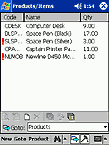
Tap Work with products button to open Products/Items window.
Tap
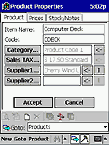
You are starting from Product window. Enter the full name of the product in Item Name field (Code field will be filled automatically - but you can edit it if necessary). Insert proper product category (e.g. Stationery, Furniture, etc.) with Category... button (tap the button and select the necessary value from the list or create your own value). Set the usual tax rate for current product with Sales TAX... button (again, tap the button and select the necessary value from the list or create your own value). Buttons Supplier1... and Supplier2... allow you to select the supplier for this product from the list of existing suppliers (you can add new supplier in the process). Supplier2... button is necessary only if you have an alternative supplier for particular product - otherwise leave this field empty. Now go to Prices window. Step 3
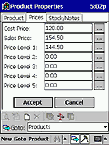
In Prices window you can set the product pricing information. Cost Price field defines how much you are paying for the product; Sale Price shows product's standard sale price. Other fields are optional and adding some flexibility in your sales policy. Price Levels 1-5 allow defining up to 5 standard sales levels you can later use in dealings with your customers depending on your relations with them. Now you are ready to move to the next window. Step 4
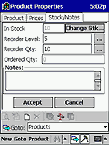
Stock/Notes window allows you to set Reorder Level (system will automatically alert you when the amount of product in stock drops below this number by ! sign in product list) and Reorder Qty (when the amount drops below Reorder Level, system will prompt you to create new Purchase Order for the amount of product shown in this field and the necessary product/supplier details will be filled in docket automatically). Ordered Qty shows how much samples are already ordered from supplier but not added to stock yet. Notes field allows you to enter any product related notes. Change Stk... button
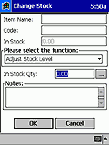
Please note Change Stk... button here. It allows accessing the function of manual
stock changes (Fig.9b above) and then putting the current amount of this product into
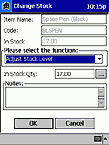
In Stock field of Stock/Notes window. You have three options here:
Add Stock (add the product quantity you entered here to stock); Remove Stock
(remove the product quantity you entered here from stock) and Adjust Stock Level
(replace the current product quantity in stock with the quantity you entered here).
|
 button to start entering
new product details (or select existing product entry and tap
button to start entering
new product details (or select existing product entry and tap
 to start editing it).
| Back to Content |
| © PDASet Software |