
|
Dockets & Stock |
| Back to Content |
|
Checking the correlation between documents
and stock
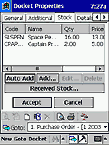
Foreword Purchase orders Other documents Product details Foreword Operations with the documents in the system are affecting your stock. Stock window in the documents you created or just creating allows you to track the changes in quantity of products ordered or dispatched. Access any existing document or start creating a new one and click Stock tab here, and then tap Received Stock... (in purchase orders) or Dispatched Stock... (in other documents) button. Purchase orders
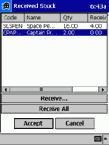
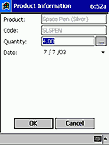
The list of goods you can see on Received Stock screen shows you the goods ordered by this docket from supplier. Qty column shows the full amount of goods ordered and Received column shows the number of each product actually received by this moment. If all goods of this docket are already delivered, you can tap Receive All button and whole list will be added to your stock. If you have received only one type of goods, you can select the related position in the list and tap Receive... button. Only selected product will be added to your stock. Moreover, if you have received only part of ordered quantity, you can reflect this fact by double tapping on target product entry and entering the actual number of pieces received. Other documents
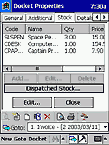
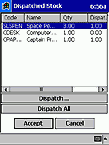
Let us consider Invoice as example. The list of goods you can see on Dispatched Stock screen shows you the goods your customer ordered by this docket from you. Qty column shows the full amount of goods ordered and Dispat. column shows the number of each product actually dispatched by this moment. If all goods of this docket are already dispatched, you can tap Dispatch All button and whole list will be removed from your stock. If you have dispatched only one type of goods, you can select the related position in the list and tap Dispatch... button. Only selected product will be removed from your stock. Moreover, if you have dispatched only part of necessary quantity, you can reflect this fact by double tapping on target product entry and entering the actual number of pieces dispatched. Product details
You can also check the full stock-related details of each product by direct access to this
product properties. Switch to Products/Items section and select the necessary
product in the list. Double tap on it or tap
|
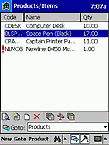
 View (or
 Edit) button on bottom
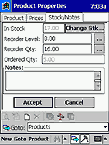
toolbar. Stock/Notes section shows you the quantity of pieces currently In Stock
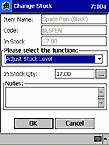
as well as Ordered Qty (pieces ordered from suppliers but not received yet). If these
details require any correction, tap Change Stk... button and edit the quantity manually.
Edit) button on bottom
toolbar. Stock/Notes section shows you the quantity of pieces currently In Stock
as well as Ordered Qty (pieces ordered from suppliers but not received yet). If these
details require any correction, tap Change Stk... button and edit the quantity manually.
| Back to Content |
| © PDASet Software |